

Student Guide to Wifi Connection
HOW TO CONNECT TO KSTU-WIFI
Your KSTU email and new password is used to connect to the WIFI. The password sent to you in the SMS is temporary and cannot connect to the KSTU-WIFI.
For those with Iphone or Windows devices:
- Turn on your wifi when you are on KSTU campus and you will see KSTU-WIFI
- Click on it, enter your username and password to join or connect.
- When you are presented with a security warning click continue or trust to get connected.
For those with android device type with do not validate:
- Open KSTU_WIFI and fill: username = identity, enter the password, CA certificate = don’t validate, phase 2 authentication = MSCHAPV2, EAP method = PEAP.
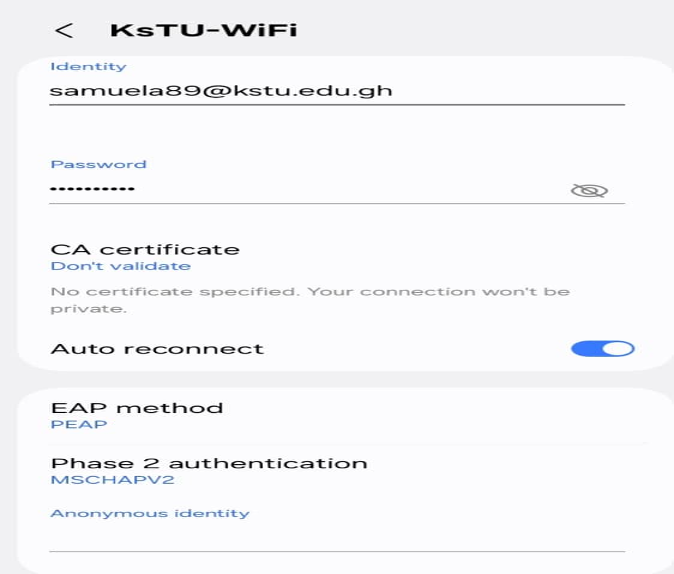
2. Click connect and continue to trust the security warning to be connected.
Some android phones do not have the “do not validate” or do not verify under the CA certificate drop down. In these phones you will only see install certificate.
Follow these steps in such cases:
- download the CA certificate from http://tinyurl.com/2bmxp3n5 with the phone.
- Open the wifi and under the CA certificate drop down select install certificate.
- Browse through the phone and pick the downloaded file, name it and install it.
- Now reopen the wifi and make the settings like the one in this screen shot.
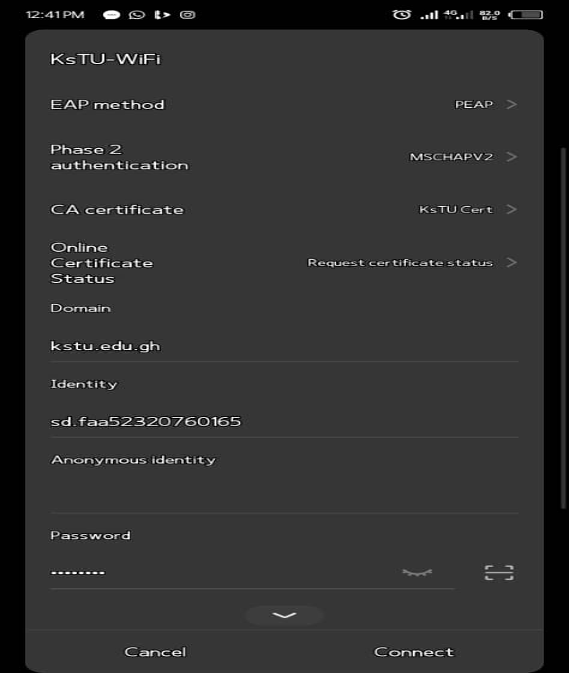
5. The name given to the certificate here is KsTU Cert, with your email at identity without the @kstu.edu.gh, domain (kstu.edu.gh) and password click connect.
HOW TO CONNECT TO EDUROAM
Eduroam is a WIFI service rolled out in many institutions for visitors to be able to connect to their wifi by using their home institutional email and password. Example, as a staff or student of Kumasi Technical University, when you visit KNUST or Legon campus you can use your KSTU email and password to connect to eduroam and have access to internet.
You can still follow the step to connecting to KSTU-WIFI guide to connect to eduroam except installing the CA certificate type of phones but let’s look at a more recommended method here.
For windows and iphone users:
- Download the eduroam Configuration Assistant Tool (CAT) here https://cat.eduroam.org/?idp=9331&profile=13773 and click to install it.
Make sure the institution is Kumasi Technical University before downloading.
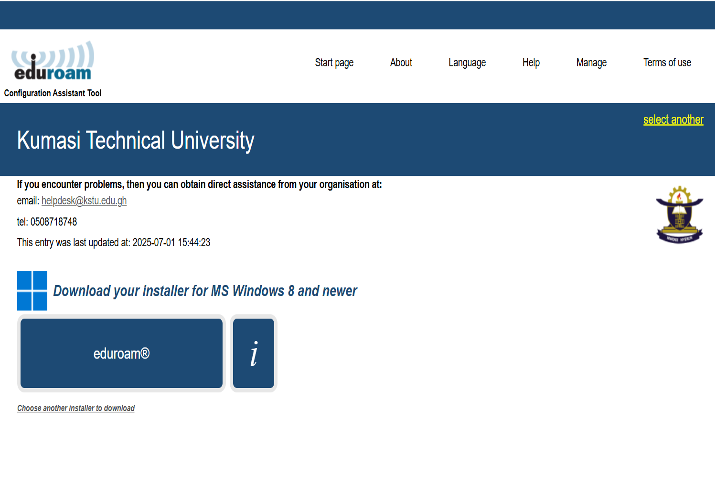
- During the installation process you will be asked for username and password, provide your KSTU email and password there, also allow anything you are asked to allow.
- After completing the installation, turn on your wifi and click eduroam and you will be automatically connected.
For android users:
- Go to play store and search geteduroam, download and open it.
In the search bar, type Kumasi and select Kumasi Technical University
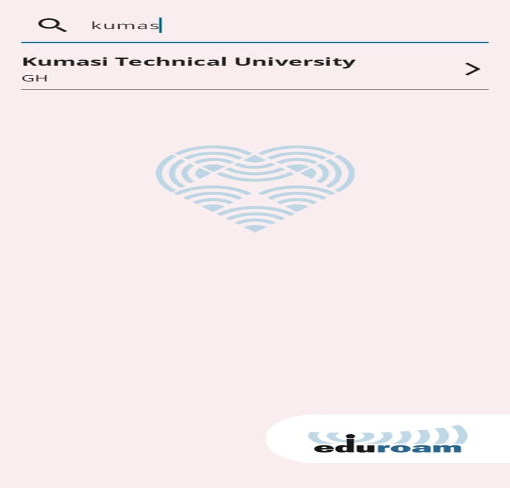
Enter your KSTU email and password and click login, then continue to click save.
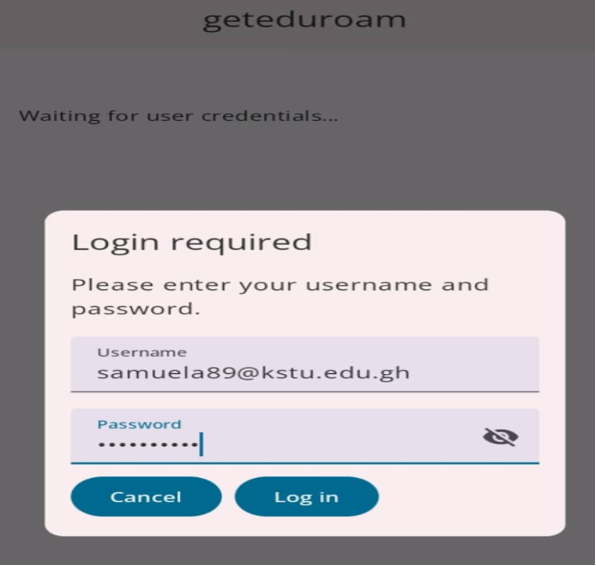
Click close app then proceed to allow. You will be automatically connected when your wifi is turned on.
About KsTU
Kumasi Technical University was established in 1954 as Kumasi Technical Institute (K. T. I. ) to offer craft courses. In 1963, the Institute was converted to a non-tertiary Polytechnic status under the Ghana Education Service to start offering, in addition, technician diploma and sub- professional courses.
Contact info
Location: Kumasi - Ashanti Region, Ghana, W/A
Postal Address: P. O. Box 854, Kumasi
Email: info@kstu.edu.gh
Tel: Admissions: +233(0)322 496 534, +233(0)322 496 380